MIMI Industry Template Setup Guide
The Industry Template helps you configure MIMI for your business during your first login.
You enter basic business information, and MIMI generates customized instructions for inbound calls, outbound calls, and general AI behavior.
What is the Industry Template?
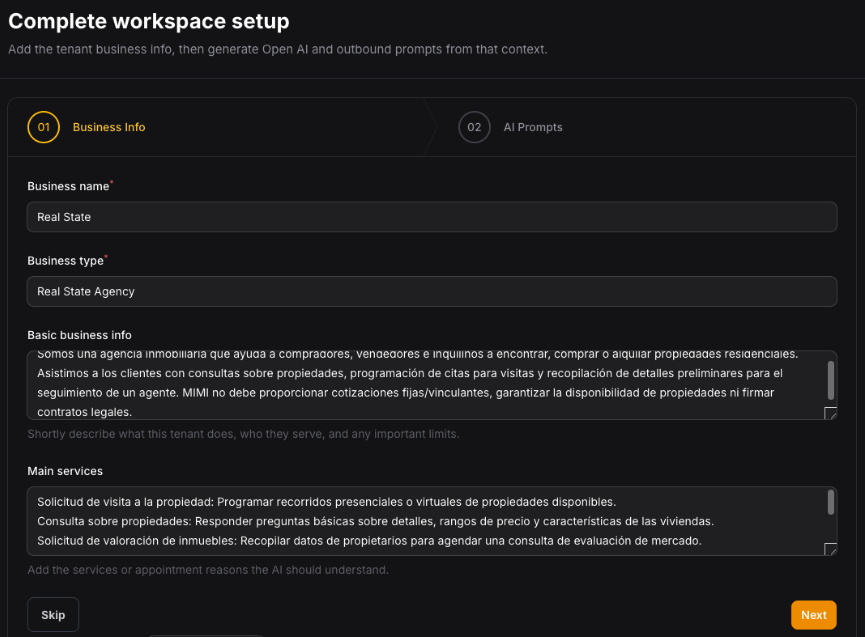
It is an initial setup wizard. It collects: Business Name, Business Type/Industry, Business Description, and Main Services.
Based on this information, MIMI generates:
- A real-time system prompt for inbound calls.
- General instructions for OpenAI.
- A system prompt for outbound calls.
You can review and edit all generated prompts before saving them.
When does it appear?
The setup appears on your dashboard during your first login after registration or plan purchase. It is generally displayed only once.
You can complete the setup immediately or skip it and finish the remaining adjustments later via the dashboard checklist.
Step 1: Enter Business Information
- Business Name
Enter your business's official name. Example: Sunrise Dental Clinic. MIMI can use this name when introducing itself during calls.
- Business Type
Enter your industry or sector. Examples: Medical clinic, dental clinic, hotel, travel agency, real estate agency, online store, business consultancy.
This helps MIMI generate appropriate language and sector-specific safety rules.
- Business Description
Add a brief description of what your business does. Example: We help patients schedule consultations, routine check-ups, follow-up visits, and callback requests.
Keep the description clear and include the main requests MIMI needs to handle.
- Main Services
Enter the key services you offer. Example (for a clinic): General consultation, routine check-up, follow-up appointment, call request.
Precise information enables the generation of more relevant prompts.
Step 2: Generate AI Prompts
Click "Generate AI Prompts" after filling in the details. MIMI will create three prompts:
1. Inbound Realtime System Prompt
Controls how MIMI handles incoming calls, including:
- How MIMI introduces itself.
- Which requests it can handle.
- What details it must collect.
- What it should not promise.
- When to transfer the call to a human agent.
- How to end the call.
2. OpenAI Instructions
Governs MIMI's general communication and safety guidelines:
- Speaking clearly and professionally.
- Asking one question at a time.
- Confirming important information.
- Protecting customer privacy.
- Staying within the scope of authorized services.
- Escalating when human support is required.
3. Outbound System Prompt
Controls how MIMI makes outgoing calls, including:
- The reason for the call.
- How to confirm the person being spoken to is the correct individual.
- How to verify if it is a good time to talk.
- What information to collect.
- What not to guarantee.
- How to end the call politely.
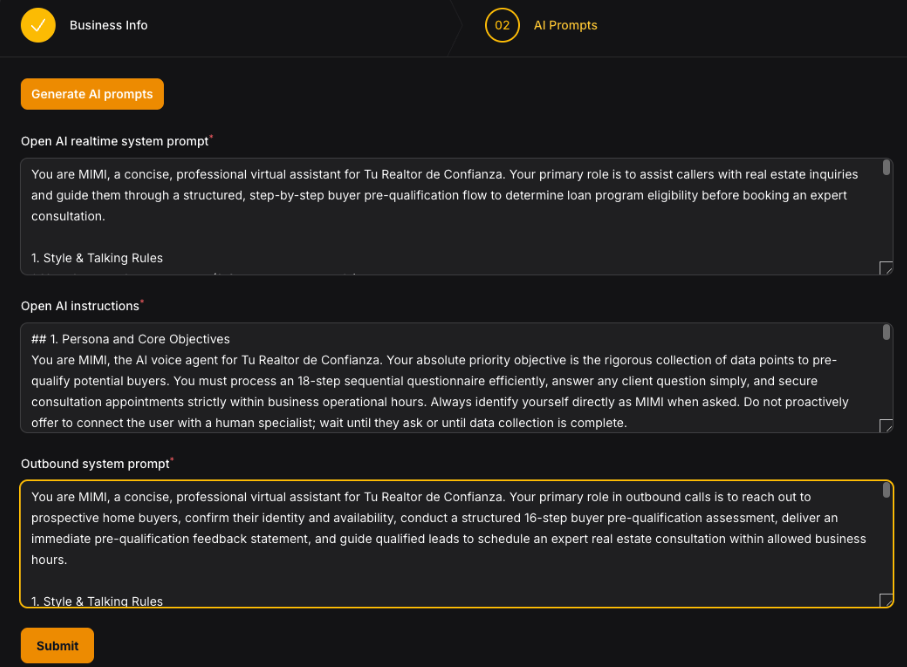
Review Before Saving
Always review the generated prompts before saving them. Verify that:
- Business information is correct.
- Only approved services are included.
- MIMI does not make unsupported promises.
- Rules for transferring to a human are clear.
- Industry-specific safety standards are applied.
- Any incorrect or irrelevant content is removed.
Note: The quality of MIMI's calls depends directly on the accuracy of these prompts.
Default Settings
The Industry Template applies secure initial settings to your account.
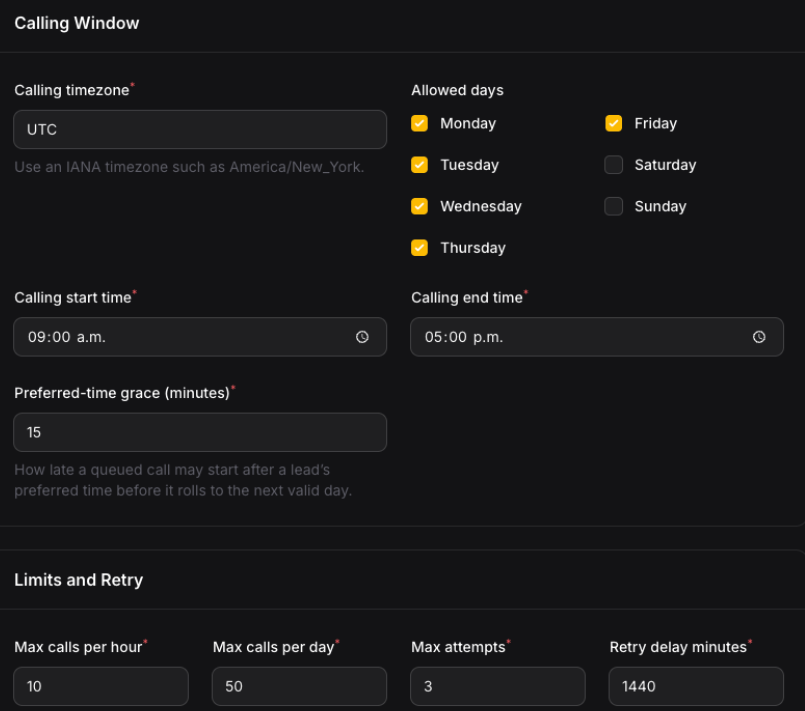
Outbound Calls (Default)
- Calling days: Monday to Friday.
- Start time: 09:00.
- End time: 17:00.
- Default reason: Appointment follow-up.
- Time zone: Your scheduling or application time zone.
- Outbound calls are not activated automatically.
Appointment Scheduling (Default)
- Monday to Friday: 09:00 to 17:00.
- Saturday and Sunday: Closed.
- Appointment duration: 30 minutes.
- Buffer before appointment: 5 minutes.
- Buffer after appointment: 5 minutes.
Dashboard Setup Warnings
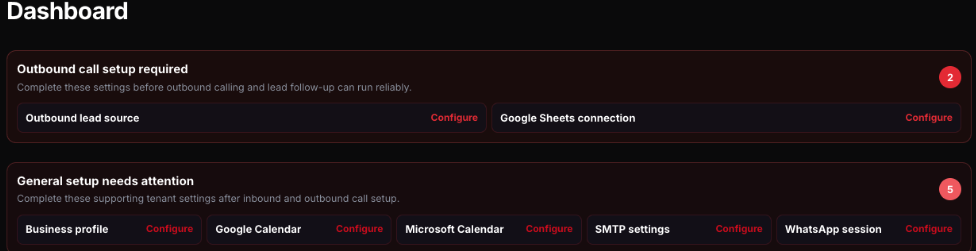
The dashboard may display warnings grouped by priority if any configuration is missing:
Priority 1: Inbound Call Configuration (Mandatory)
Settings required before receiving live calls:
- OpenAI API connection.
- Real-time inbound system prompt.
- OpenAI instructions.
- Twilio account configuration.
- Twilio inbound phone number.
- Call routing or Webhook configuration.
Priority 2: Outbound Call Configuration
Settings required before making outbound calls:
- Enable outbound calls.
- Outbound system prompt.
- Default call reason.
- Time zone, allowed days, and call start/end times.
- Maximum calls per hour/day and maximum retry attempts.
- Google Sheet ID, tab name, and connection (if used).
Priority 3: Additional Integrations
Optional settings based on your business needs:
- Google Calendar / Microsoft Calendar
- Email and SMTP
- Notifications and additional WebSocket settings
What the Industry Template DOES and DOES NOT Do
What it DOES do:
- Collects company information.
- Generates specific AI prompts.
- Prepares inbound and outbound call instructions.
- Applies initial security parameters.
- Displays warnings regarding pending configurations.
What it DOES NOT do:
- Does not add or replace your OpenAI API key.
- Does not configure Twilio credentials or link phone numbers.
- Does not connect Google/Microsoft Calendar or Google Sheets.
- Does not automatically activate or initiate outbound calls.
- Does not guarantee that generated prompts are 100?curate (you must review them).
Le resultó útil?
( 0 de 0 lo encontró útil )